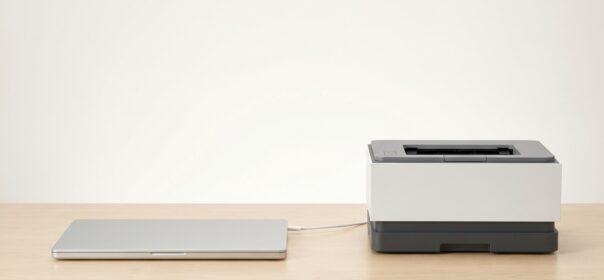
Installing a new printer can sometimes lead to annoyance and frustration. Don’t let this happen to you by taking my useful tips into account. Connecting a printer to a computer doesn’t have to be a hard task by any means. There are often many ways you can do this and I will specify each and every way. After reading this you will be able to set up a printer within minutes! Before you connect a printer to a computer decide whether you can set up a wireless connection or if you have to make use of any cables. The installment of a printer is very similar for Windows and Mac users so don’t worry too much about that.
Printers with a USB cable
Place the printer close enough to your computer so you can plug the USB cable into your computer. Once you do this your computer will detect the new hardware and inform you about the driver status.
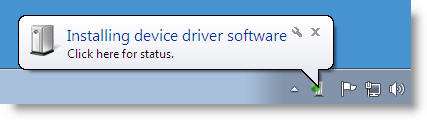
Drivers are the essential software you need to keep your hardware running. This also goes for printers. When you go to your control panel (for Windows Users) and then select devices and printers you can actually see the installed printer.
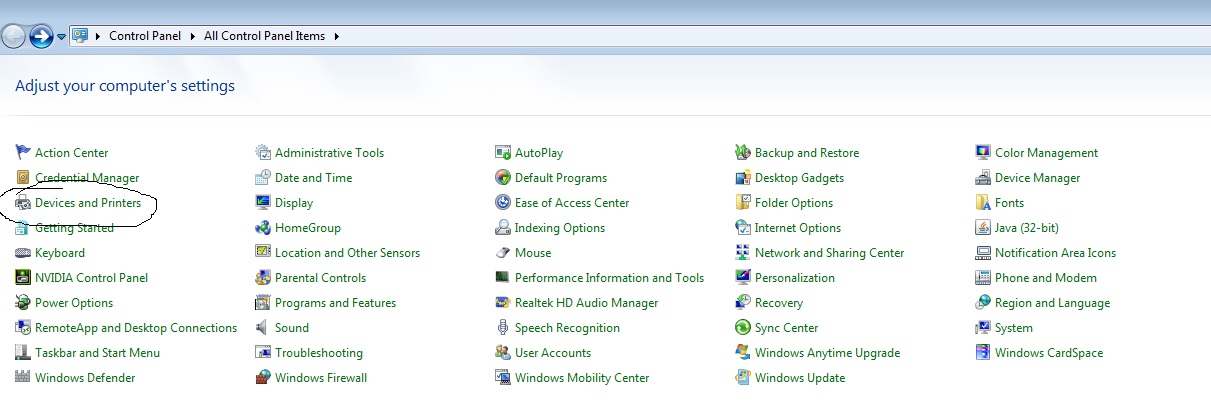
Select the newly installed printer and go to properties. There you can find an option to print a test page. If your printer doesn’t appear on the devices and printers tab you can go to the printer manufacturer website and download the driver for your printer there. You will be asked for the product name and then you can choose and install the driver you need.
Wireless printers
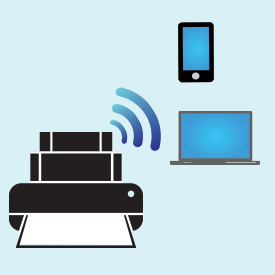 These printers often come with an installation disk for your computer or laptop. This will always be the case for printers without their own display screen. Just insert the disk and start installing the printer software.
Printers that do have display screens (like LCD-screens or touchscreens) often don’t need an extra installation disk. You can simply click the wireless icon or menu on the display and set up a connection to your computer. However, this way you might only be able to make use of the basic printer functions. If you want a full installment of all your printer features (like scanning, email,…) you will still have to install extra drivers or the installation disk that comes with your printer.
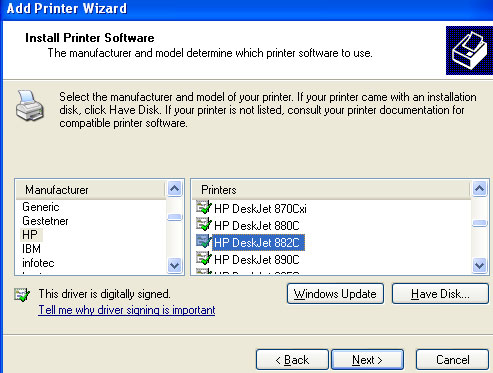
If your computer is connected to the internet it will start searching for the printer. Once you found the printer and got the software correctly installed you can start printing. When the printer doesn’t have an installation disk you will have to go to the manufacturers website and install the driver you need. The installation process of every printer may vary a bit depending on what type of printer you bought. Usually it will look like something as shown in the next images. At the end of the installation you will often be asked if you want to print a test page.
Phone to printer
When you want to send your documents from a phone to a printer you will have  to go to the devices and printers tab again. Go to the properties of the printer you want and select the sharing tab. There you can select share this printer. Next you might have to install the needed software for your phone. Although this isn’t always the case. Depending on what printer and phone you have this may or may not be necessary. I won’t be going into detail on every type of phone or printer but feel free to ask if you have any questions. For Iphone you typically need to install AirPrint. This might already be preinstalled on your Iphone.
Common problems and how to fix them
- Make sure you plugged the printer into a power source. Without power the printer won’t work. This may sound funny to you but it is actually a very common problem!
- If you plugged the printer into a power source and it won’t start, check your fuse box.
- In case you encounter a problem that isn’t solved on this page, following the manual can be a good idea. Manufacturers can each have a different way to make you install their printer.
- Try restarting your computer and printer if you are having trouble with the software installation.
- Some printers have a status report mode. Ask your printer for its report and often it will tell you where the problem is situated.
- In case of a wireless printer please make sure that your printer is in a place where it can detect your computer network. If the signal isn’t strong enough you won’t be able to print.
- In case you have a firewall make sure you allow the printer to connect with your computer.
- Go check out my post about common printer errors now!
Installation processes for printers are very similar overall. Once you get the hang of it future installments will be a piece of cake. I hope this article will help you in setting up your next printers. Feel free to leave a comment any time.
Vincent
Best Printers in 2026 — Our Top Recommendations
Looking for a reliable printer in 2026? Here are three of our top-rated picks across different categories, offering excellent value, reliable wireless connectivity, and low running costs.
1. Epson EcoTank ET-4850 — Best Overall All-in-One
The ET-4850 is our top overall recommendation for home and home-office users. The supertank ink system delivers thousands of pages before needing a refill, virtually eliminating cartridge waste and keeping running costs incredibly low. It features solid print speeds, an automatic document feeder, and a surprisingly compact footprint for a full-featured all-in-one.
→ Check the Epson EcoTank ET-4850 price on Amazon
2. Brother HL-L2350DW — Best Budget Laser Printer
If you print mostly text documents and want a reliable workhorse that won’t let you down, the Brother HL-L2350DW is a classic choice. This monochrome laser printer is fast, reliable, and incredibly easy to set up. Its high-capacity replacement toner cartridges keep print-per-page costs minimal, making it perfect for students and professionals alike who need volume printing without the high operating expense.
→ Check the Brother HL-L2350DW price on Amazon
3. HP OfficeJet Pro 9015e — Best Wireless All-in-One
The HP OfficeJet Pro 9015e is a feature-packed all-in-one with strong wireless support, making it ideal for multi-device households. It offers fast printing, automatic two-sided scanning, and seamless integration with the HP Smart app. It’s also Instant Ink eligible, which can help keep running costs predictable. A great choice for busy home offices.
→ Check the HP OfficeJet Pro 9015e price on Amazon
Share This:


