
The Best Printer for Home Use When You Have Kids, Homework and a Tight Ink Budget
The best printer for home use is the one that matches how your household actually prints. A family that runs off a worksheet a day needs something different from a family that prints a school project twice a year and a photo for grandma at the holidays. Most buying mistakes come from choosing by price tag or brand and finding out three months later that the ink costs more than the printer did.
This guide works from your print habits first. It covers whether you need a printer at all, which features matter, what ink or toner really costs per page, whether subscription ink makes sense, and how to get the thing connected to your Wi-Fi without a headache. It names no single winner, because the right answer depends on your household, and it gives you the questions that find it.
Do you even need a printer? What students and college-bound kids should think about first
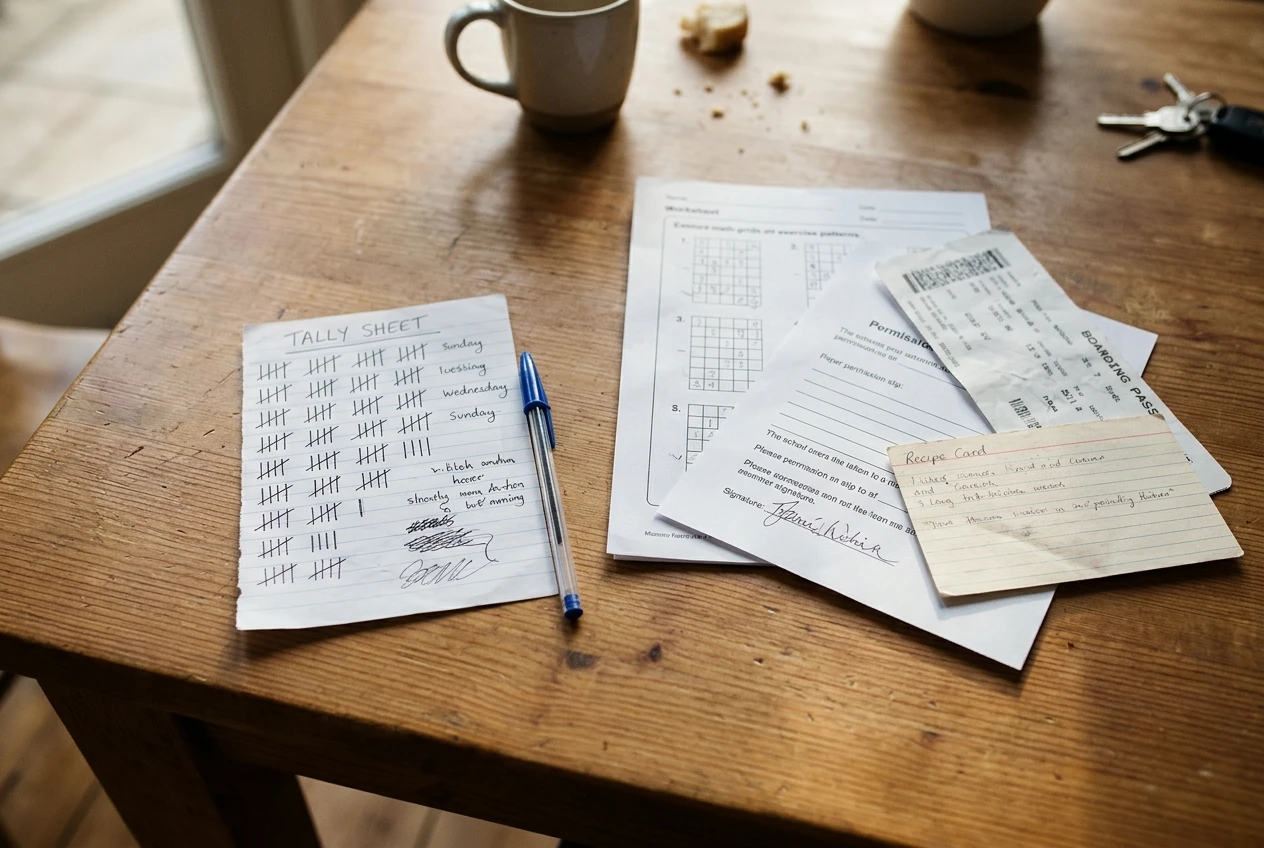
Plenty of schoolwork is now submitted online, and that makes it tempting to skip the printer. Before you decide, count what actually gets printed. Write down for a few weeks every page your household sends to paper: worksheets, permission slips, boarding passes, recipes, forms that need a signature, drafts that a teacher wants on paper.
If the answer is a handful of pages a month, a trip to a library or a print shop may cost less than owning a printer. If it is a few dozen pages a month or more, a home printer pays for itself in convenience quickly, especially when a form is due the next morning.
College-bound students have a few extra questions to settle:
- Does the campus have print labs? Many schools offer printing in libraries or computer labs, often charged per page or covered by a student allowance. Check the cost and the hours before you buy anything.
- How much space is there? A dorm desk is small. A compact printer that fits on a shelf beats a large all-in-one you have nowhere to put.
- What are the network rules? Campus Wi-Fi can require extra registration for devices like printers, and some housing rules limit what you can plug in. Read your school’s guidance first. A printer with a USB connection works regardless of the network.
- Will it move? A printer that rides in a car at the end of each semester should be light, and the ink should be the type that survives sitting unused over a break.
A student who prints mostly essays and lab reports in black and white has very different needs from one who prints color posters. Settle that before you look at a single product page.
How to choose a home printer: the few things that matter for a family
Spec sheets list dozens of features. For a family, only a handful change your daily experience.
Ink type and running cost
This matters more than the purchase price. Cartridge inkjets are cheap to buy and often expensive to feed. Refillable ink tank printers cost more up front and usually cost much less per page. Laser printers use toner, which costs more per cartridge but covers many more pages. The sections below go through each in detail.
Print quality for what you print
Homework is mostly text, and nearly any current printer prints readable text. Photos and color graphics are where inkjets pull ahead of lasers. Decide which of the two you care about and buy for that one.
Connection options
Most home printers offer Wi-Fi, USB, or both. Wi-Fi lets every phone, tablet and laptop in the house print without cables. Look for support for AirPrint (Apple devices) and Mopria (Android), which let phones print without installing extra software. If you have a Chromebook, check the product page for compatibility before you buy.
Paper handling
Look at the input tray capacity, since a tiny tray means refilling it constantly. Automatic two-sided printing, called duplex, halves your paper use for longer documents. Without it, you flip the pages by hand.
Speed and size
Pages per minute matters when three kids print at 7:45 on a school morning. It matters less for a household that prints a page here and there. Size matters if the printer has to live on a shelf or in a bedroom.
Extras worth paying for
A scanner, a document feeder and a color touchscreen are all useful in the right household and wasted money in the wrong one. The all-in-one section below sorts out which is which.
What printer should a family buy? Picks by how your household prints
Instead of a ranked list, here are four common household patterns and the printer type that tends to fit each. When you shop, apply these to whichever models are current.
The homework-and-forms household
You print mostly black-and-white text: assignments, reading packets, forms. Color shows up occasionally for a diagram or a school flyer. A monochrome laser printer is a strong fit here, because toner is cheap per page, text comes out sharp and the printer does not mind sitting idle for weeks. If you want occasional color, an ink tank all-in-one handles both jobs.
The big-volume household
Several kids, several teachers, lots of paper. Cost per page decides everything. An ink tank printer or a laser is usually the better choice because the supplies cost much less per page than standard cartridges. Add duplex printing and a roomy paper tray, and you will refill and restock less often.
The craft-and-photo household
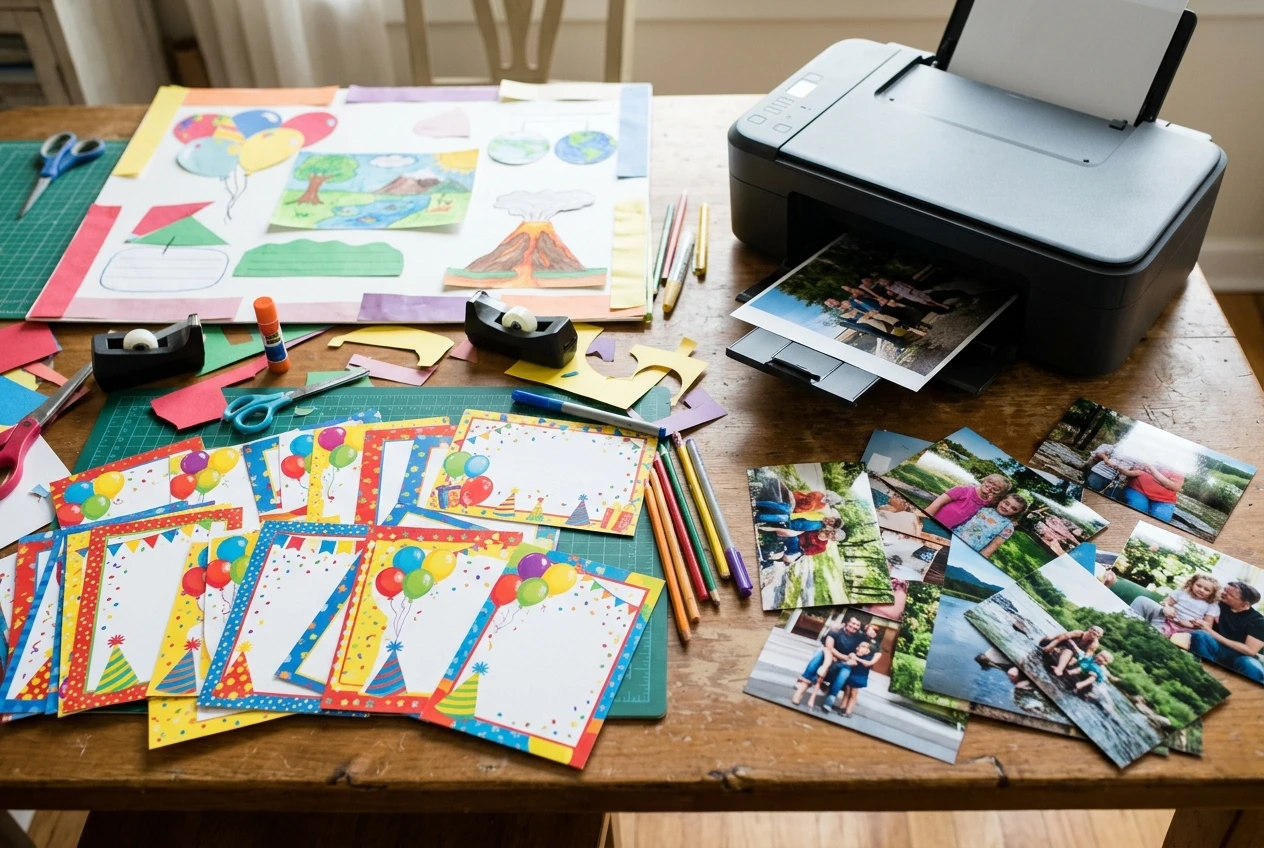
You print school posters, birthday invitations and photos for the fridge. Choose an inkjet, ideally one with separate ink colors so you replace only the color that ran out. A photo-capable inkjet gives better color and smoother gradients than an entry-level laser. Buy proper photo paper for the pictures, and use ordinary paper for everything else.
The “almost never” household
You print a few pages a month, in bursts. This is the group that gets caught by dried-up cartridges, because inkjet printheads can clog when the printer sits unused. A laser is the safer option here. If you want an inkjet anyway, print a page every week or two and power it off with its own power button so the heads are sealed properly.
The best printer for students and kids: simple, sturdy and easy to share
A printer shared by children has to survive being used by children. Look for these qualities.
- Simple setup and a clear screen. A printer with a small display and plain menus lets a ten-year-old clear a paper jam or check the ink level without calling you.
- Easy paper access. A front-loading tray and a jam door that opens without tools make a stuck sheet a thirty-second fix.
- Phone and tablet printing. Kids often write on a school tablet or a Chromebook. AirPrint, Mopria and the manufacturer’s app mean they can print without you installing anything on each device.
- Low-cost supplies. If every page costs real money, you end up policing how much anyone prints. A printer with cheap pages lets kids reprint a smudged assignment without a lecture.
- Compact footprint. Students in a dorm or a shared bedroom need something small. Check the dimensions, including the space needed to open the lid and extend the output tray.
One practical idea for shared households: keep a ream of plain paper next to the printer and put photo paper somewhere out of reach. Photo paper loaded by accident for a worksheet wastes money, and a worksheet loaded for a photo gives a poor result.
Best wireless printer for home, and what to do when it won’t connect
A wireless printer lets everyone print from wherever they sit, which is the main reason families buy one. It is also the feature that causes the most setup frustration, nearly always for a few predictable reasons.
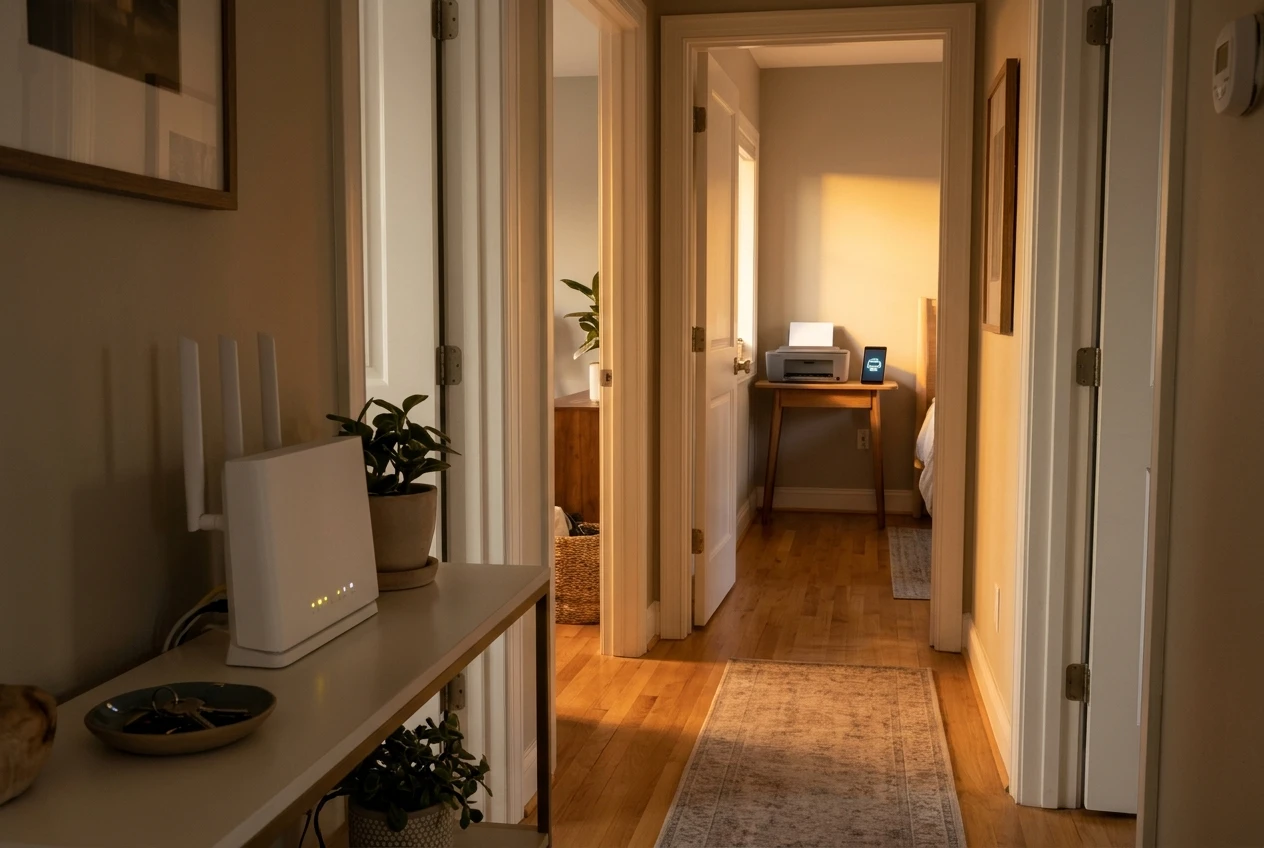
The printer and the device are on different networks. Many routers broadcast two networks, one on the 2.4 GHz band and one on 5 GHz. Plenty of printers connect only to 2.4 GHz. If your phone is on a different network from the printer, it will not find it. Make sure both are on the same network, and if the printer will not join, check whether it supports the band your router is using.
The signal is weak. Printers often sit in a corner far from the router. If the connection keeps dropping, move the printer closer or move the router. A printer’s built-in antenna is usually weaker than a laptop’s.
The printer needs a restart, and so does the router. Turn off the printer, unplug your router for about thirty seconds, plug it back in, wait until it is fully online, then turn the printer back on. This clears many connection errors.
The software is out of date. Check for firmware updates on the printer’s screen or in the manufacturer’s app, and update the app or driver on the computer.
A guest network or a security setting is in the way. Some routers isolate devices on guest networks so they cannot see each other. Put the printer and your devices on the main network.
If none of that works, use a USB cable temporarily. That gets you printing today and lets you sort out Wi-Fi later without a deadline. Many printers also offer Wi-Fi Direct, which makes the printer broadcast its own network that a phone can join. It is useful as a backup when the home network misbehaves.
Home printer with scanner and copier: when an all-in-one earns its space
An all-in-one prints, scans and copies. For most families it is worth the small extra cost, because forms come home that need a signature and go back as a scan or a photocopy. Doing that with a phone camera works, but a flatbed scanner gives a flat, readable page that schools and offices accept without complaint.
Features that make an all-in-one useful:
- A flatbed scanner for single pages, book pages and photos.
- An automatic document feeder (ADF) if you scan multi-page documents. Without one you place each page by hand, which gets slow for anything longer than three or four sheets.
- Scan to phone or email so a scanned form goes straight to where it is needed.
- Copy without a computer. A standalone copy button saves you from turning on a laptop to duplicate one page.
An all-in-one takes more room than a print-only model, and a printer with more moving parts has more that can fail. If your household truly never scans or copies, a print-only model is smaller and often cheaper. If you are unsure, the scanner tends to get used more than people expect, particularly in the weeks around school registration and tax paperwork.
Students often get the most from an all-in-one. Scanning handwritten notes, lab sheets and signed forms is a regular part of college life, and the scanner saves trips to a campus office.
Is a laser printer worth it for home use?
For many families, yes, with one caveat about color.
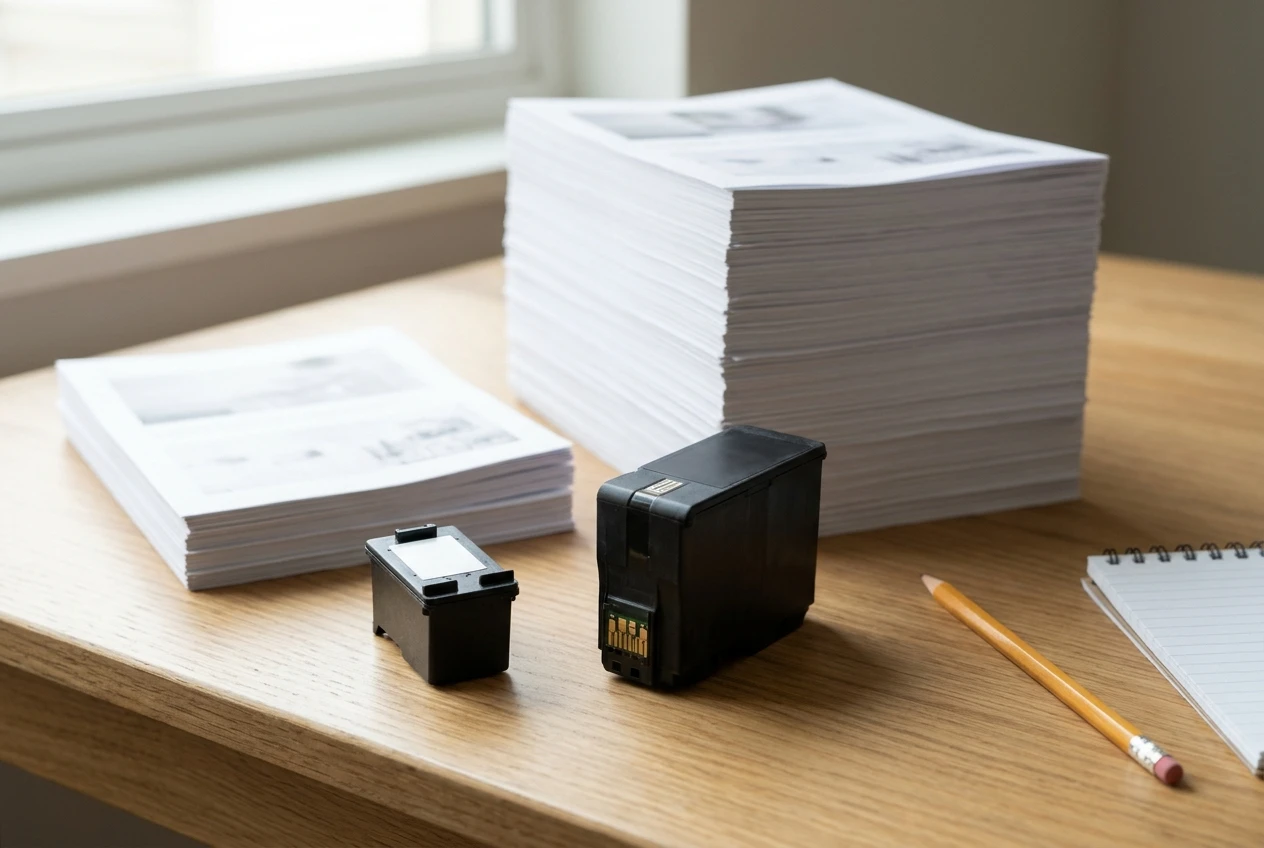
A laser printer fuses toner powder onto the page with heat. Toner does not dry out, so a laser printer works the same after a month of sitting idle as it does after a day. Pages of text come out crisp, quickly, and with no smearing if a page gets wet. A toner cartridge usually prints many more pages than an ink cartridge, which brings the cost per page down for text-heavy households.
The trade-offs:
- Higher up-front cost for color. Monochrome lasers are often reasonably priced. Color lasers cost more and use four toner cartridges.
- Photos are weaker. A laser can print color graphics well enough for a school poster, but photos look better from an inkjet on photo paper.
- Replacement toner is a bigger single purchase. One cartridge costs more than one ink cartridge, even if it lasts far longer.
- Size. Lasers are often larger and heavier than inkjets of similar capability.
A monochrome laser works well for households whose printing is mostly text. If your family needs color regularly, an ink tank all-in-one or a color laser is worth comparing against each other on running cost, using the method in the next section.
Printer ink cost per page and how to lower your ink bill
The price on the printer’s box tells you little about what you will spend. Cost per page is the number that does. It takes one line of arithmetic to work out.
Cost per page = price of the cartridge ÷ number of pages it prints (its page yield).
Manufacturers publish page yields, usually measured on a standard test. Real pages vary with how much ink each one uses, so treat the yield as a comparison tool rather than a promise. As a round-number example, a cartridge that costs $20 and prints 200 pages costs 10 cents a page. A cartridge that costs $30 and prints 600 pages costs 5 cents a page, even though it costs more at the register. These are made-up figures for the math. Plug in the real ones from the product page.
Do the same sum for a full set of colors if you print in color, and compare the result across printers before you buy.
Ways to bring the bill down
- Choose a printer built for low running costs. Ink tank printers and laser printers generally cost less per page than entry-level cartridge inkjets. The savings grow with volume.
- Buy high-yield cartridges. If the printer takes them, the larger size nearly always lowers the cost per page.
- Print in draft or grayscale for homework. Draft mode uses less ink, and a teacher reading a worksheet does not need rich black.
- Print two-sided and use the preview. Duplex printing saves paper, and print preview catches the stray page with a single line on it before it prints.
- Skip printing when a screen will do. Reading packets and reference material often work fine on a tablet.
- Keep the printer in regular use. An inkjet that sits unused burns ink on cleaning cycles to clear clogged heads. A short print every week or two reduces that waste.
- Compare compatible cartridges carefully. Third-party cartridges are cheaper, but quality varies, and some printers reject them or lose features. Read the manufacturer’s warranty terms and reviews of the specific cartridge before you switch.
Paper counts too. Basic multipurpose paper is fine for homework. Heavier or brighter paper costs more and does not improve a worksheet.
Printer subscription ink: worth it or not?
Some manufacturers offer subscription plans where you pay a monthly fee based on the number of pages you print, and the company ships cartridges automatically, often when the printer reports that ink is running low. The appeal is plain: predictable cost, no emergency trip to the store, and a lower price per page than buying cartridges one at a time for some households.
Whether it pays off depends on a few details you should check in the plan terms before you sign up:
- How pages are counted. Plans are usually sold in tiers by monthly page count. Compare the tier price with what your own cartridge cost per page would be at your real volume.
- What happens to unused pages. Some plans let unused pages roll over for a limited time and some do not. If your printing swings between a heavy month at exam time and a nearly empty summer, this matters a great deal.
- What happens if you cancel. With some plans, the cartridges stop working once you leave the service. Read this clause closely.
- Whether the printer is tied to the plan. Some printers are sold with a free trial period of a subscription and expect you to stay enrolled. Others work fine with ordinary cartridges.
- Whether the printer needs an internet connection. Many plans rely on the printer reporting its ink level, so the printer has to stay online.
Subscription ink tends to suit a household with steady, moderate printing and a printer designed around the service. It suits a household with irregular volume less well, because you pay for a tier even in a light month. If you already own or plan to buy an ink tank printer or a laser, the running costs are low enough that a subscription rarely adds much.
A useful test: estimate your monthly pages from the habits you counted at the start, find the plan tier that covers that number, and divide the monthly fee by the pages. Compare that with the cartridge cost per page from the last section. Pick whichever is lower, and add a note to check again after a few months when your real numbers are in.
Setting up your first home printer, step by step
Setting up takes about twenty to thirty minutes on a first attempt. Follow the order below and the usual problems stay away.
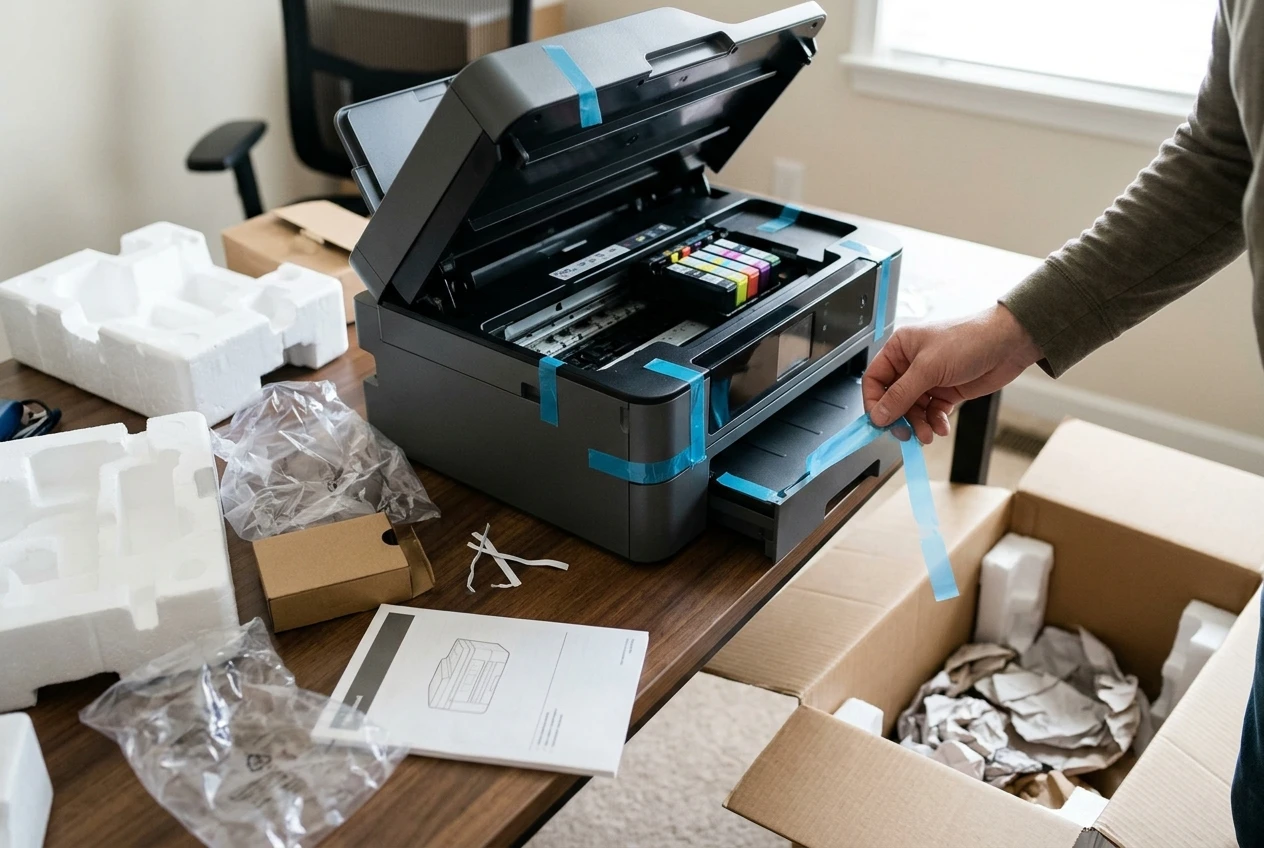
- Unbox it and remove all the tape and packing material. Printers ship with tape and protective film in the paper path, the ink bay and around the scanner lid. Look inside every door and tray.
- Place it near an outlet and within good range of your router. Leave room around it to open the lid and extend the output tray.
- Plug it in and turn it on. Follow the prompts on the screen to pick your language and region.
- Install the ink or toner. Use the cartridges that came in the box. They are often starter cartridges that print fewer pages than a standard one, so buy a spare early.
- Load plain paper in the tray. Fan the stack, line it up, and adjust the guides so they touch the sides of the paper without bending it.
- Let it run its first-time setup. Many printers align the printheads and print an alignment page on their own. Follow the screen.
- Connect it to Wi-Fi. Use the printer’s screen to choose your home network and enter the password, or use the manufacturer’s app on your phone, which walks you through it. Pick the same network your devices use.
- Add the printer to each device. On a phone or tablet, the printer often shows up in the print menu once both are on the same network. On a computer, install the manufacturer’s software or add the printer in your system’s printer settings.
- Print a test page. Do this from a computer and from a phone, so you know both work.
- Check for updates. Update the printer’s firmware if the printer or app offers one.
After setup, write the printer’s model number and the date you installed the cartridges somewhere handy, and keep a spare black cartridge or toner at home. Running out of ink the night before a deadline is the most avoidable problem in the whole process.
Find the right printer for your household
You now have a way to choose: count your pages, decide how much of the printing is color, compare cost per page, and match the printer type to your household. Compare the printers we recommend for your household, and check current prices through our affiliate links to see which fits your budget. We earn a commission if you buy through them, at no extra cost to you.
Share This:


